Введение

The USB is an important part of the PlayStation Move controller. This guide will help you to remove and replace.

  1. rTNPCfOojOq4OT3n
    rTNPCfOojOq4OT3n
    uAyyLMgYHpRB1h5c
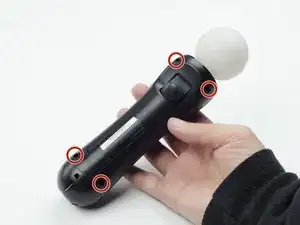
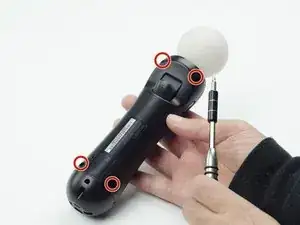
    • Turn the controller over and unscrew the four 10mm screws with a PH #00 screwdriver.

  2. GfCOpyX2hHLC3IyX
    GfCOpyX2hHLC3IyX
    GkLVd3KATTueJNFE
    SDVUgveGGBtD14DG
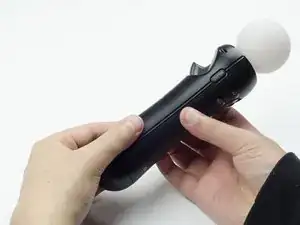
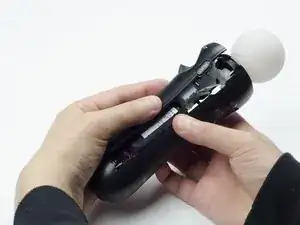
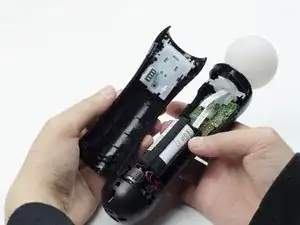
    • Pinch the sides of the back panel to remove it and set it aside.

  3. U3JMHsKmcpQbhoZJ
    U3JMHsKmcpQbhoZJ
    56YmQPxYEbPmTCH4
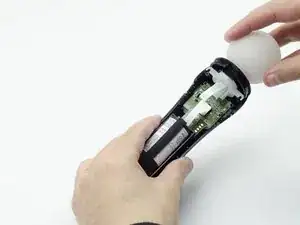
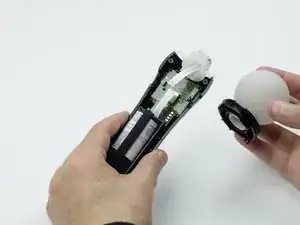
    • Hold the base of the controller with one hand and with the other carefully pull up on the white spherical piece to remove it.

  4. oBngX1BhFqDokAVy
    oBngX1BhFqDokAVy
    CYAqYSOWr3OYq4GN
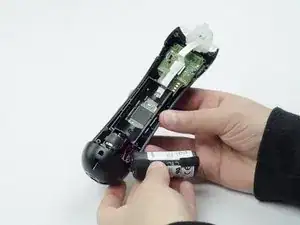
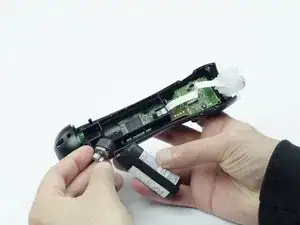
    • Push the Lithium Ion battery from its slot to remove it.

    • Be mindful not to damage the wires or wired components, as the battery will still be attached via its connector.

  5. MxVPpGeDH2SmlQJ5
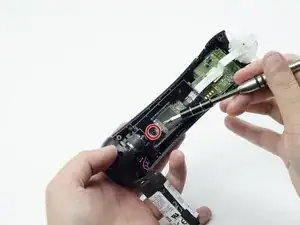
    • Unscrew the 9mm screw in the battery slot with a PH #00 screwdriver.

  6. oMPLRtD2ILqasspc
    oMPLRtD2ILqasspc
    msG4WUqyfNGJma1M
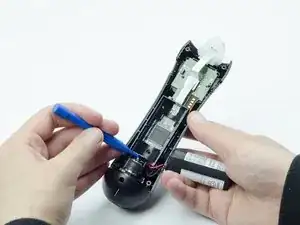
    • Using a plastic opening tool, carefully pry the rumble motor free.

  7. pxWQtDQswulJYkAR
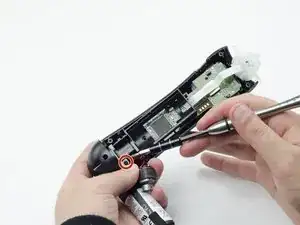
    • Unscrew the 9mm screw behind the rumble motor slot with a PH #00 screwdriver.

  8. DDBBfApHSq1J1tLH
    DDBBfApHSq1J1tLH
    Uqsa2NJImaAJDMER
    6ArX4dDRSvVAZarC
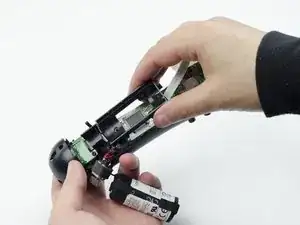
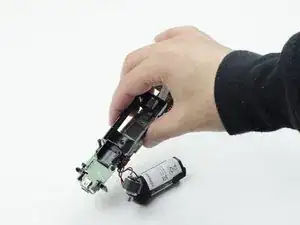
    • Carefully pinch the plastic sides of the battery slot and lift it (along with the circuit board) from the plastic shell of the move controller.

  9. aohCIvggqmiJMkZp
    aohCIvggqmiJMkZp
    1rdnGbBiA1TRBM1Y
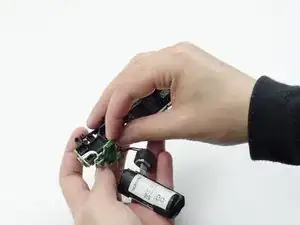
    • Using your fingers, carefully pry the square green piece beneath the battery slot free.

    • It is attached via white ribbons which need to be kept intact.

  10. JksyrjOpYatV2P24
    JksyrjOpYatV2P24
    1RtEK5DTVBCQM2Zy
    air3JAXKwjUeafjA
    • Follow the white ribbon attached to the part you just removed to a smaller, more rectangular piece.

    • Lift the rectangular piece from its slot to free it.

  11. C1tJWtvG6PNdJ63A
    C1tJWtvG6PNdJ63A
    mc3nvGsgql2vDjlW
    UfbuSMevPXFDkpit
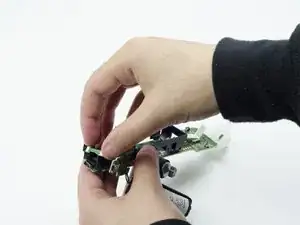
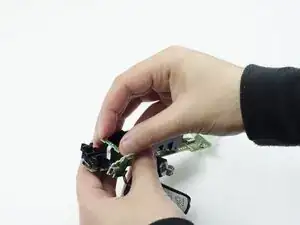
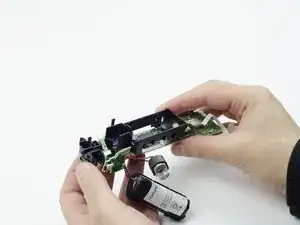
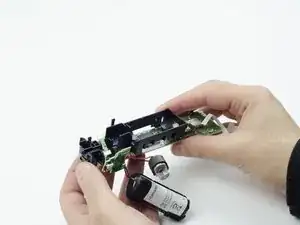
    • Carefully lift the entire circuit board from the black plastic encasing it.

    • Take extra care not to damage any of the wired components.

  12. aJAhv6SxHBfWgXoR
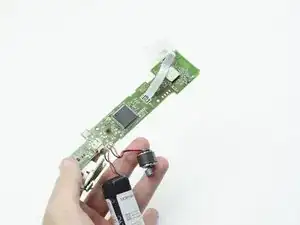
    • At the end of the circuit board, you should see a small silver connector port (this is the USB).

    • Using a soldering iron, carefully desolder the port from the board. For help with desoldering, please reference this guide: How To Solder and Desolder Connections

    • In order to reinstall the new USB port, you must solder the new one to the board.

Заключение

To reassemble your device, follow these instructions in reverse order.

Sarah Shand

Участник c: 20/02/17

1930 Репутация

0 комментариев