Введение

This guide will show you how to replace your laptops fan. This process requires only a small Phillips head screwdriver and your hands.

  1. XAEi3FPPmmg1OGhq
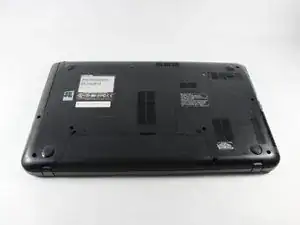
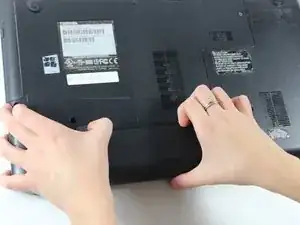
    • Lay your laptop upside down on a flat surface.

    • Power off your laptop and unplug the charger.

    • Make sure you allow the laptop time to cool so that you aren't removing a hot battery.

  2. oNgHoXlnTltC6jwH
    oNgHoXlnTltC6jwH
    3X55dW1yxJwRwEVB
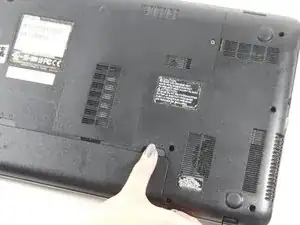
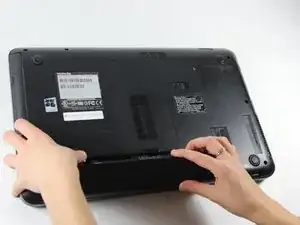
    • Locate the right eject switch, labeled "1".

    • Slide the switch all the way to the right and it should stay in place.

  3. CY1LViqSlQDpMkLZ
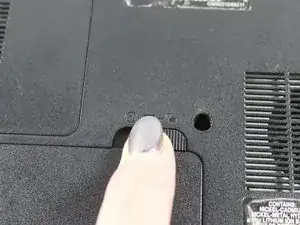
    • The second eject switch is on the left and it is numbered "2".

    • Slide the switch to the left and remain pushing on it, because unlike switch "1" it will not stay in place on it's own.

  4. GESjweJvjDHBHi1q
    GESjweJvjDHBHi1q
    X3BsvyTCTiu3tM2h
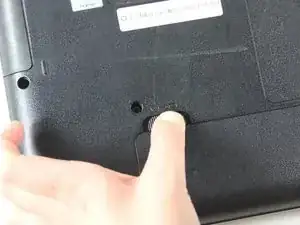
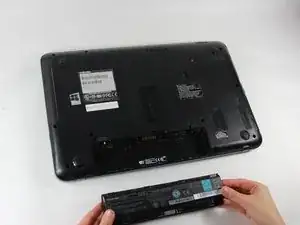
    • With hand still pushing the left switch, grab onto notch at the center of the two switches.

    • Pull up and towards you. The battery will begin to lift out of the device.

  5. QYboAGsFQwV2OvVX
    • The battery can now be pulled out entirely. You are ready to replace it.

  6. aAYdNeUBh2d43P5e
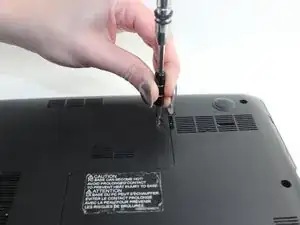
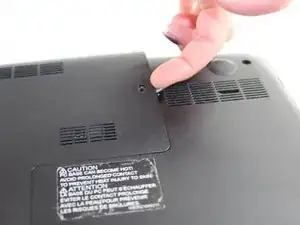
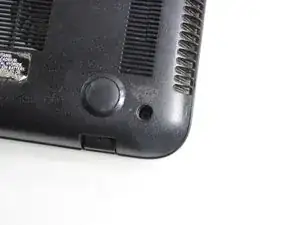
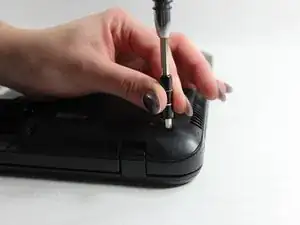
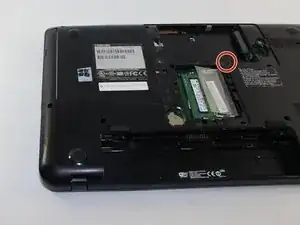
    • Using a small Phillip's head screwdriver, unscrew the single 7 mm screw (5 mm head) on the L-shaped panel on the backside of the laptop.

  7. OqVAoAgMMWADZ5ep
    OqVAoAgMMWADZ5ep
    VZkfnGnFUemUbDLy
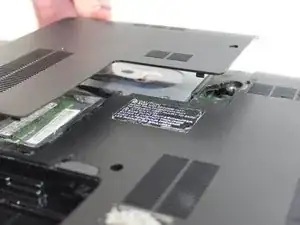
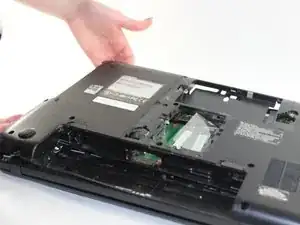
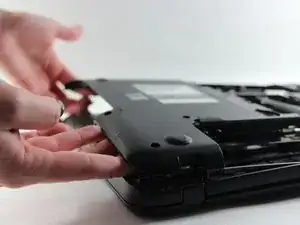
    • Once the screw is removed, pry the panel upwards by gripping the groove pictured.

    • Be careful while removing the panel. Don't apply too much force when lifting as you may crack the plastic.

  8. VxZjpy6VnPq3LXXR
    VxZjpy6VnPq3LXXR
    IPqcNmi1erbjBSbs
    3i1YcdMKFrOKFbv6
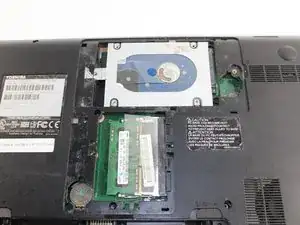
    • Locate the hard drive. It is in a metal casing as pictured.

    • To remove, grab the right side of the piece and slide leftwards.

    • Lift up and out.

  9. usxiUbsVHHEckIUN
    usxiUbsVHHEckIUN
    nRTEBAMi1VQ3ofGS
    • Now that you have your battery and hard drive removed, it's time to begin unscrewing the back panel.

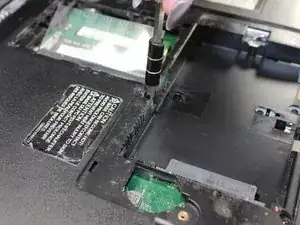
    • Taking a Phillip's head screwdriver, remove the two 7 mm (5 mm head) screws located around the spot where the hard drive once was.

  10. PBRfwcGKGVcDqxnY
    PBRfwcGKGVcDqxnY
    tPu62EjGGHeHsYUP
    • There are nine 7 mm (5 mm head) screws located around the perimeter of the laptops back panel. Unscrew them all.

    • Be sure you put all the screws in a safe spot so you do not lose them.

  11. R1hjYUULcLieu2GN
    R1hjYUULcLieu2GN
    opVJMEbFkB1tW3H2
    J63NDASLUWlW11TV
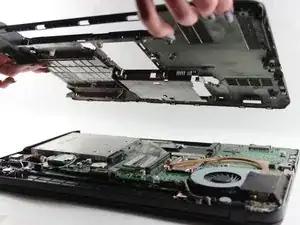
    • Get a grip on one edge of the back panel that is now unscrewed and lift its entirety up and away from the device.

    • Be gentle when lifting the panel. Do not forcefully pull it off.

  12. qh43iXsVodFWIZhJ
    qh43iXsVodFWIZhJ
    umEq2GJIwQQ6ABCQ
    6nLXIShRjF1HIJA1
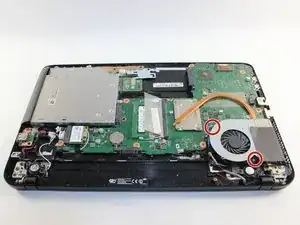
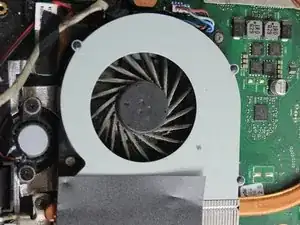
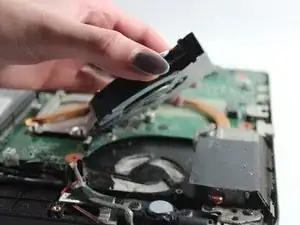
    • Upon locating your device's fan, look to see if it is dirty or clogged with dust before continuing with the removal process. That may be your only issue.

    • To remove the fan, unscrew the two 4 mm (3 mm head) screws that are around the fan.

  13. yfmwCYl5sXxJCGuq
    yfmwCYl5sXxJCGuq
    6R3LXOuTRnVZPN3a
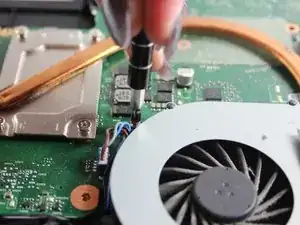
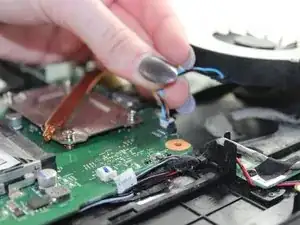
    • Unplug the wire located to the left of the fan by pulling gently upwards.

    • Remember which way you pulled it out. You will want to replace the fan with the colors on the wire in the same orientation.

    • Now that the fan is unplugged, you can lift it up and out of the device.

Заключение

To reassemble your device, follow these instructions in reverse order.
Courtney Burns

Участник c: 21/10/16

863 Репутация

0 комментариев